| |
1. The 3 main features of BEA China Personal Cyberbanking:
- 1.More security: BEA China Personal Cyberbanking is the first among foreign banks in China to adopt the CFCA Certificate, an authoritative, dependable and impartial third party verification mechanism. The system supports verification methods including Mobile Dynamic Password, USB-Key Certificate, and the combination of the two, Mobile Dynamic Password + USB-Key Certificate. Cyberbanking transactions performed by customers are highly secure.
- 2.More convenience: We provide a user-friendly system with simple operation flows that do not require you to use your verification method and password multiple times to complete a single transaction.
- 3.More individuality: Through Personal Cyberbanking of BEA China, you can not only use traditional transactions, such as account enquiry and transfers, but also a variety of brand-new transaction methods, such as email/mobile phone remittance, Payment Share, Group Buy and so on.
2. What are the prerequisites for using Personal Cyberbanking?
- You must have a personal computer with Windows XP or Windows 7, and IE6.0, IE7.0 or IE8.0 installed. Internet access is required. The recommended resolution is 1024*768.
3. How do I open a Personal Cyberbanking account with BEA China?
- 1.Agreement signed online: Simply sign the agreement online by using your account or debit card number and account withdrawal password for identity verification without the need to visit a branch. You are required to set a Cyberbanking personal password after login and you can use this password for future login. Customers who have signed the agreement online can perform account balance enquiries, transaction history enquiries and fund transfers within All-In-One Accounts.
- 2.Agreement signed at branch: Compared with signing the agreement online, customers who sign the agreement at a branch using valid identification documents are offered an extended range of Cyberbanking functions. You may then use your Cyberbanking username and personal password for account login.
4. How do I cancel the Personal Cyberbanking service?
- You may cancel the service at any branch by producing your valid identification documents.
5. How do I log in to Cyberbanking if I do not have a personal password?
- 1.Agreement signed online: Please use your account withdrawal password the first time you log in if you do not have a personal password.
- 2.Agreement signed at branch: You must use your Cyberbanking personal password for account login. Please reset the password at any one of your branch if your have forgotten the password.
6. What should I do if an error occurs when I enter the verification code?
- You may refresh the webpage by clicking the "Refresh" button in the menu bar of your browser or click the verification code to get a new code and enter it again.
7.What kind of login method should be used?
- 1.By username: For customers who have signed the agreement at branch, please log in to Cyberbanking using your username and personal password. You may set your own password after login and use the new password for future login. For customers who have signed the agreement online, please log in to Cyberbanking by using an account/debit card number and the Cyberbanking personal password. If you do not have a personal password, please use the account withdrawal password. You may set you username, which is used for future login, after you have read the agreement and your identity has been verified.
- 2.By account/debit card number: Simply enter the account/debit card number and the Cyberbanking personal password. If you do not have a personal password for first time login, please use your account withdrawal password. The system will verify your identity after you have entered your password.
8. What should I do if the USB-Key does not work?
- 1.Please download and install the USB-Key driver if there is no response after you have inserted the key.
- 2.If you have forgotten your password, please produce your valid identification documents and reset the password at a branch in person.
- 3.If you just want to change the password of the key, please log in to Cyberbanking and change the password via the Security Centre.
9. How to change setting in IE8.0?
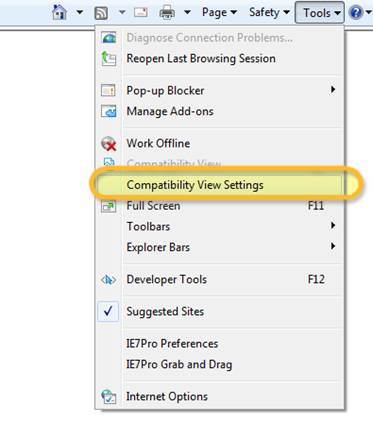
- 1.Open the IE8.0 browser, press the "Tools" button in the tool bar and select "Compatibility View Settings".
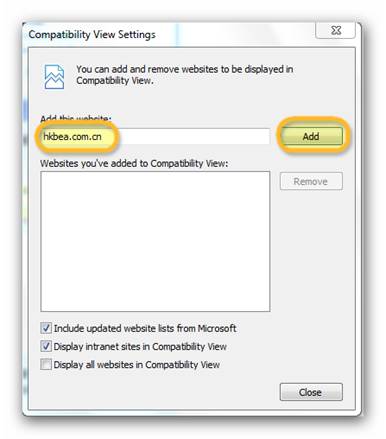
 - 2.Type "hkbea.com.cn" in the blank and press the button "Add".
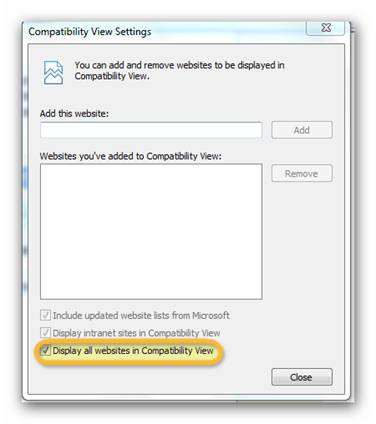
 - 3.You can also select "Display all websites in Compatibility View" instead.
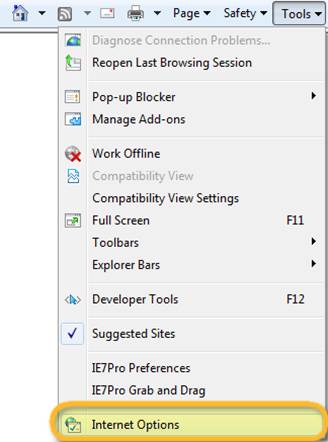
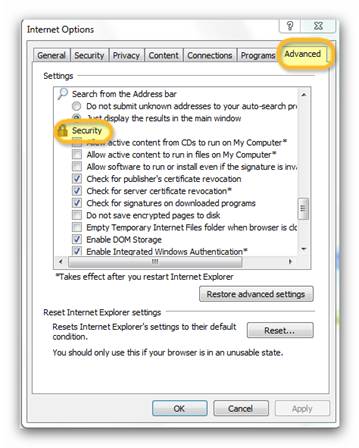
 - 4.Then select "Internet Options" in the "Tools" bar.
 - 5.Find "Security" in the "Advanced" menu.
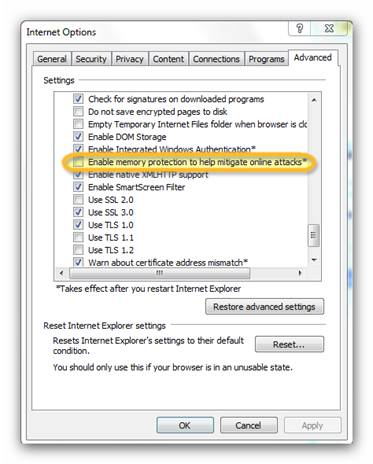
 - 6.Tick off "Enable memory protection to help mitigate online attacks" and press "ok".
|
| |
|
|
